Run MCP Workflows From One macOS Studio
Connect models, start the MCP server, add files and resources, call local tools, and package repeatable work as skills without leaving one focused desktop app.
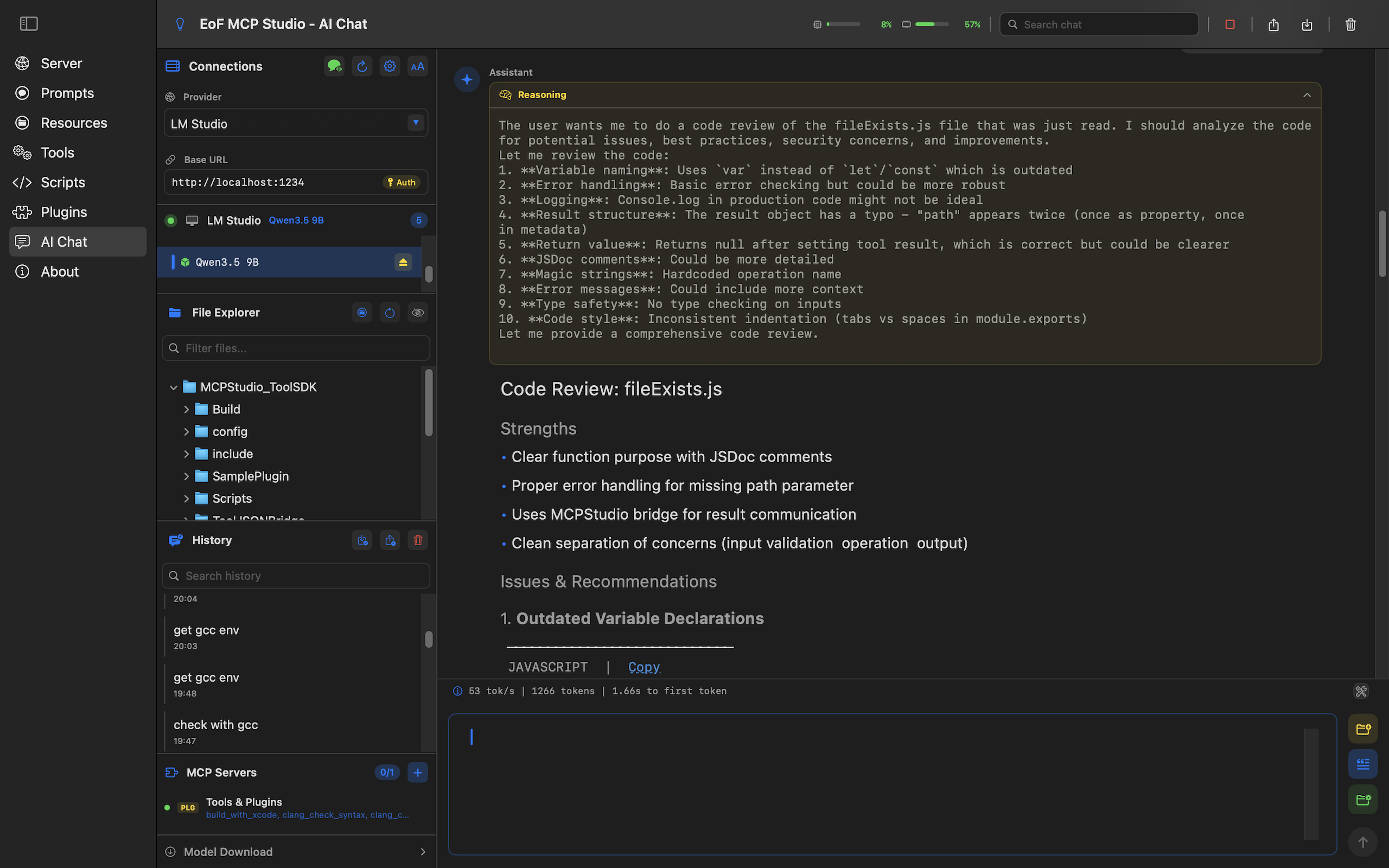
Connect models, start the MCP server, add files and resources, call local tools, and package repeatable work as skills without leaving one focused desktop app.
A practical workspace for building, testing, and using MCP-powered AI workflows.
Connect LM Studio or external providers, select models, attach files, insert prompts and resources, and export conversations.
Bundle instructions, prompt templates, tools, resources, and trigger phrases into reusable chat workflows.
Design connected agent teams, run dependency-aware batches, and return structured execution reports.
Configure host, port, authentication, HTTPS certificates, and live logs for the local MCP server.
Create tools with structured input and output schemas, then back them with scripts, plugins, or external calls.
Keep reusable prompt templates and static context ready for chat, tools, and server-side MCP clients.
Grant explicit file and folder access for scripts, attachments, resources, and file-aware tools.
The core areas users touch when building and running MCP workflows.
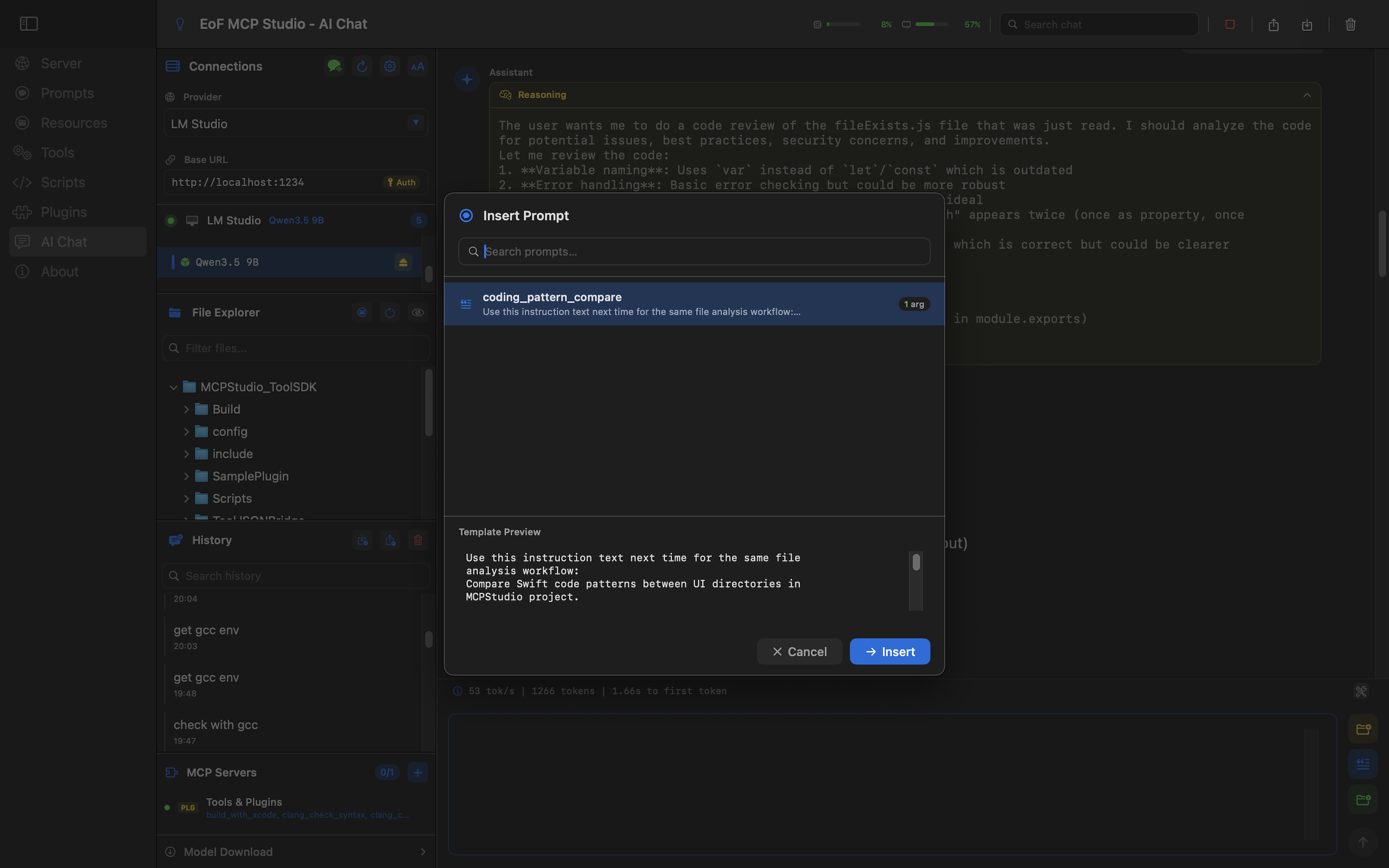
Chat with a connected model, add local context, call MCP tools, and keep the complete session in one workspace.
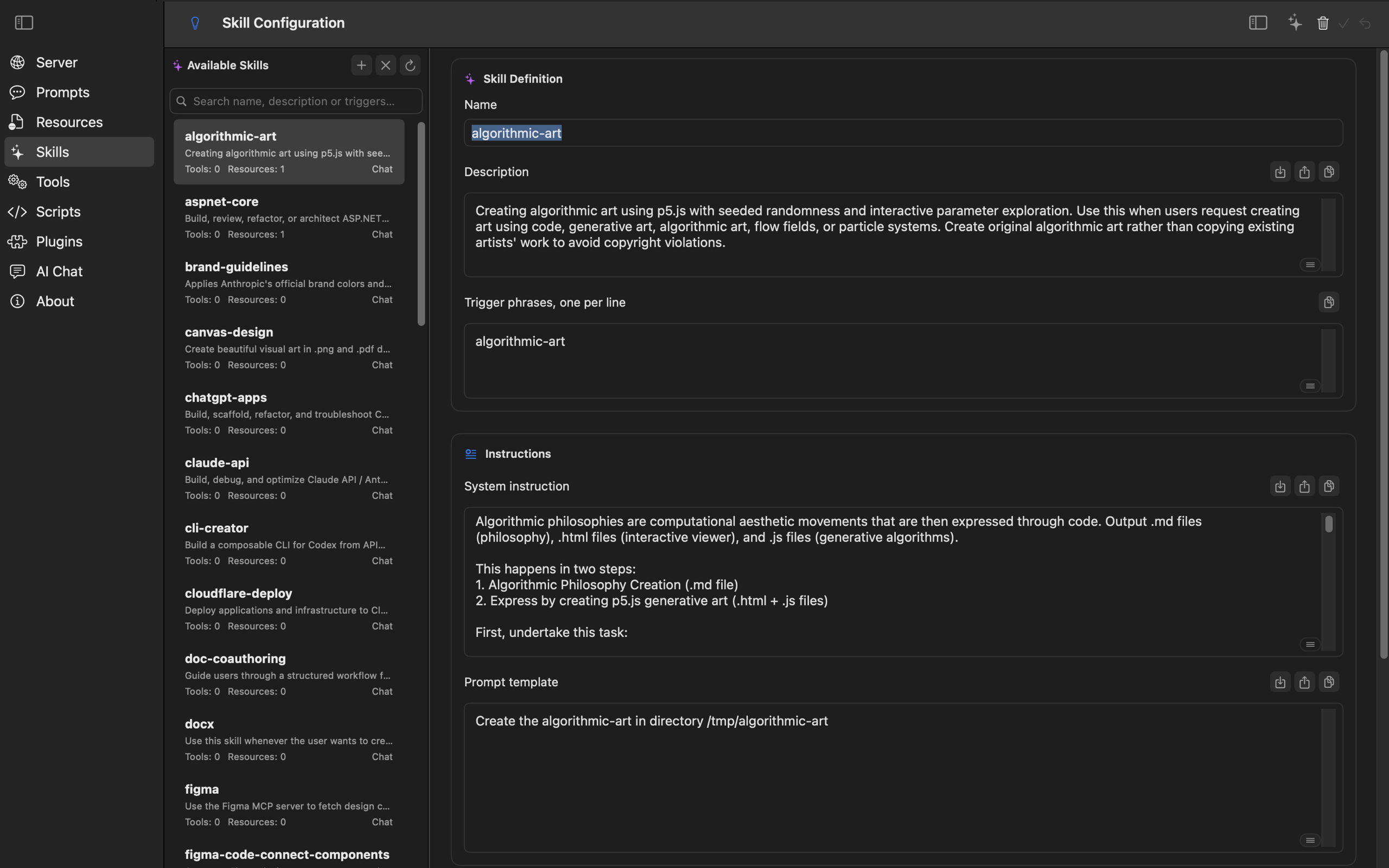
Turn repeatable work into selectable skills that carry the right instructions, tools, and resources into AI Chat.
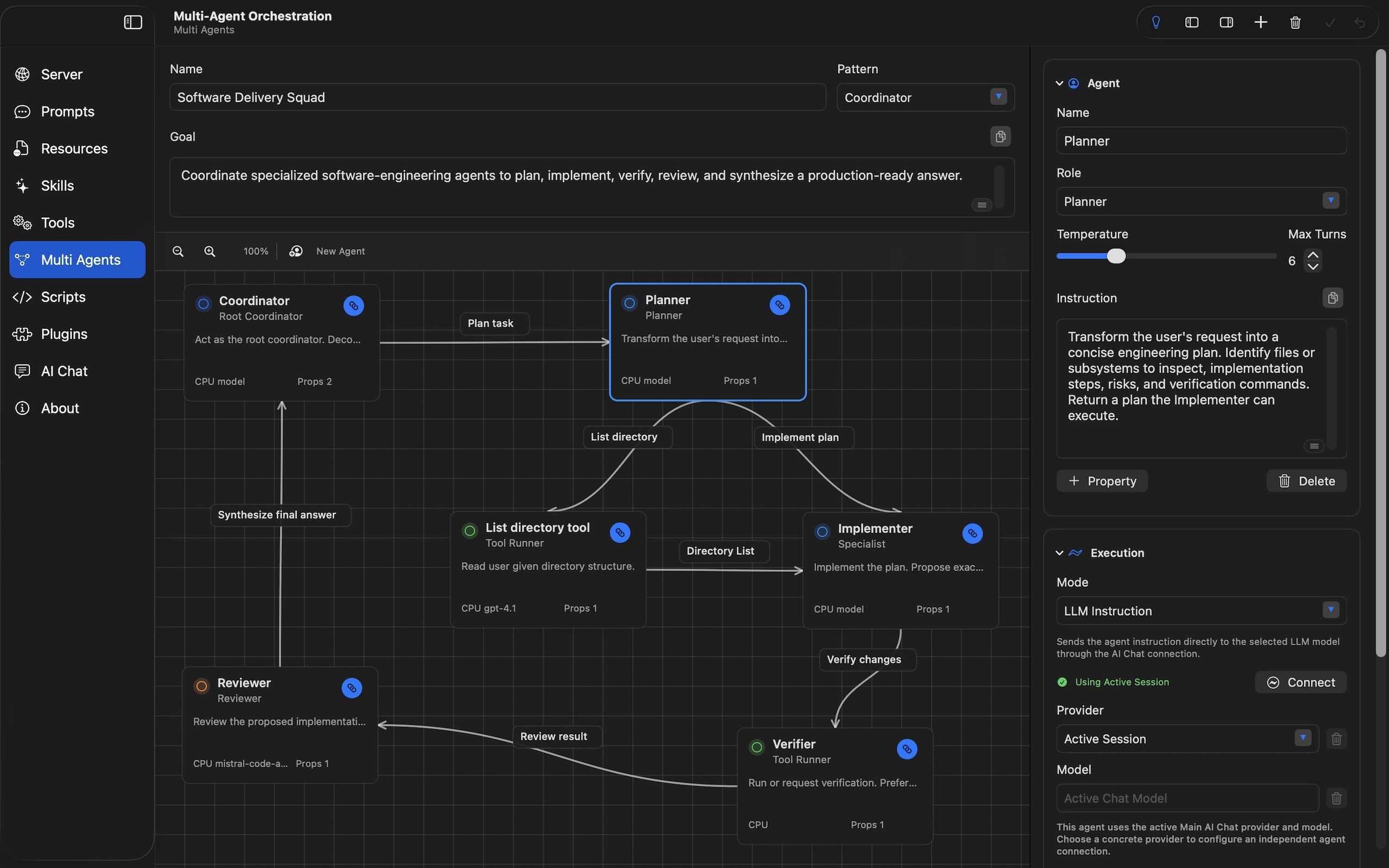
Build reusable teams with coordinators, specialists, reviewers, and tool runners, then execute them from AI Chat or the workflow executor.
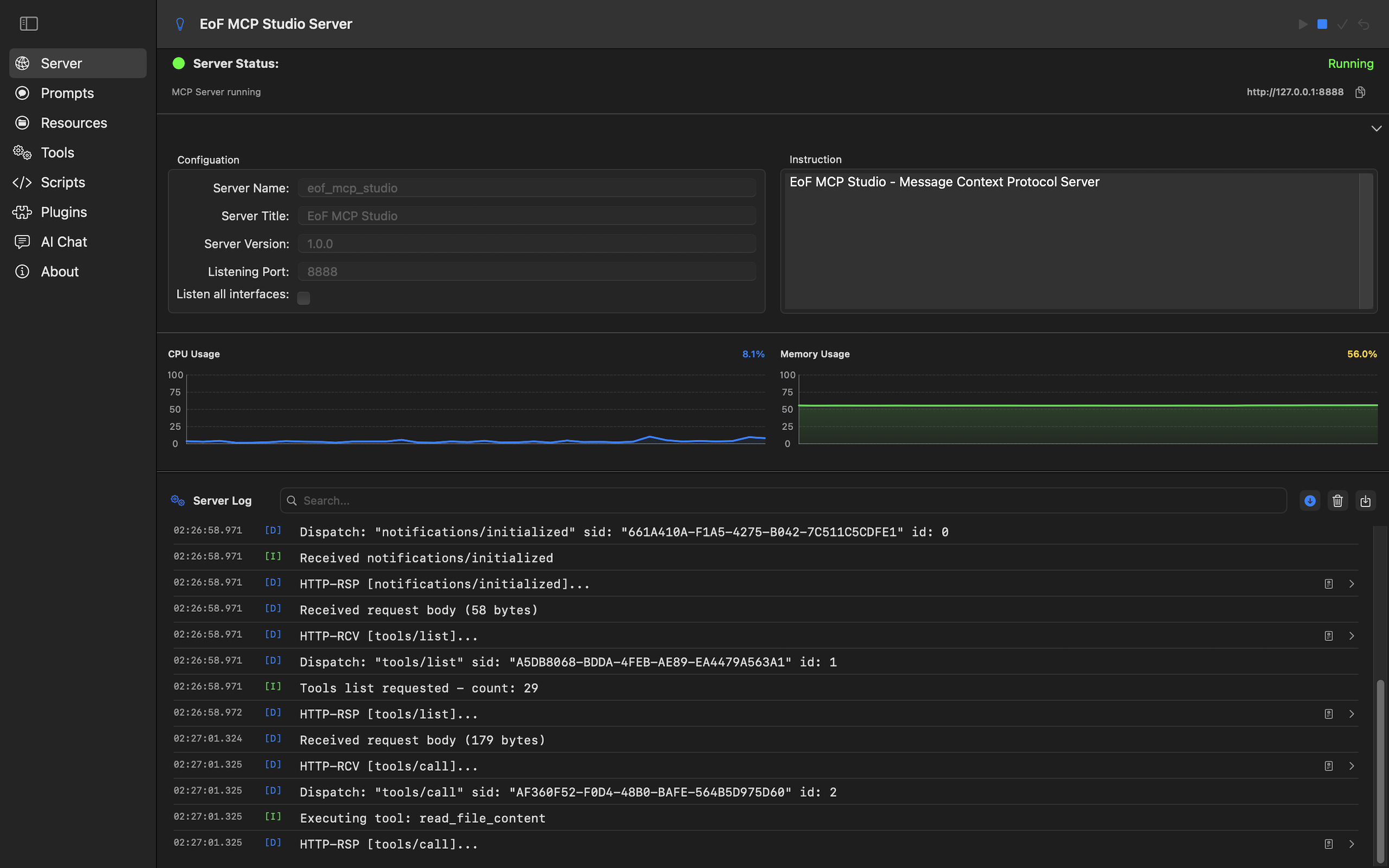
Start, stop, and inspect the MCP server with visible connection settings and runtime log output.
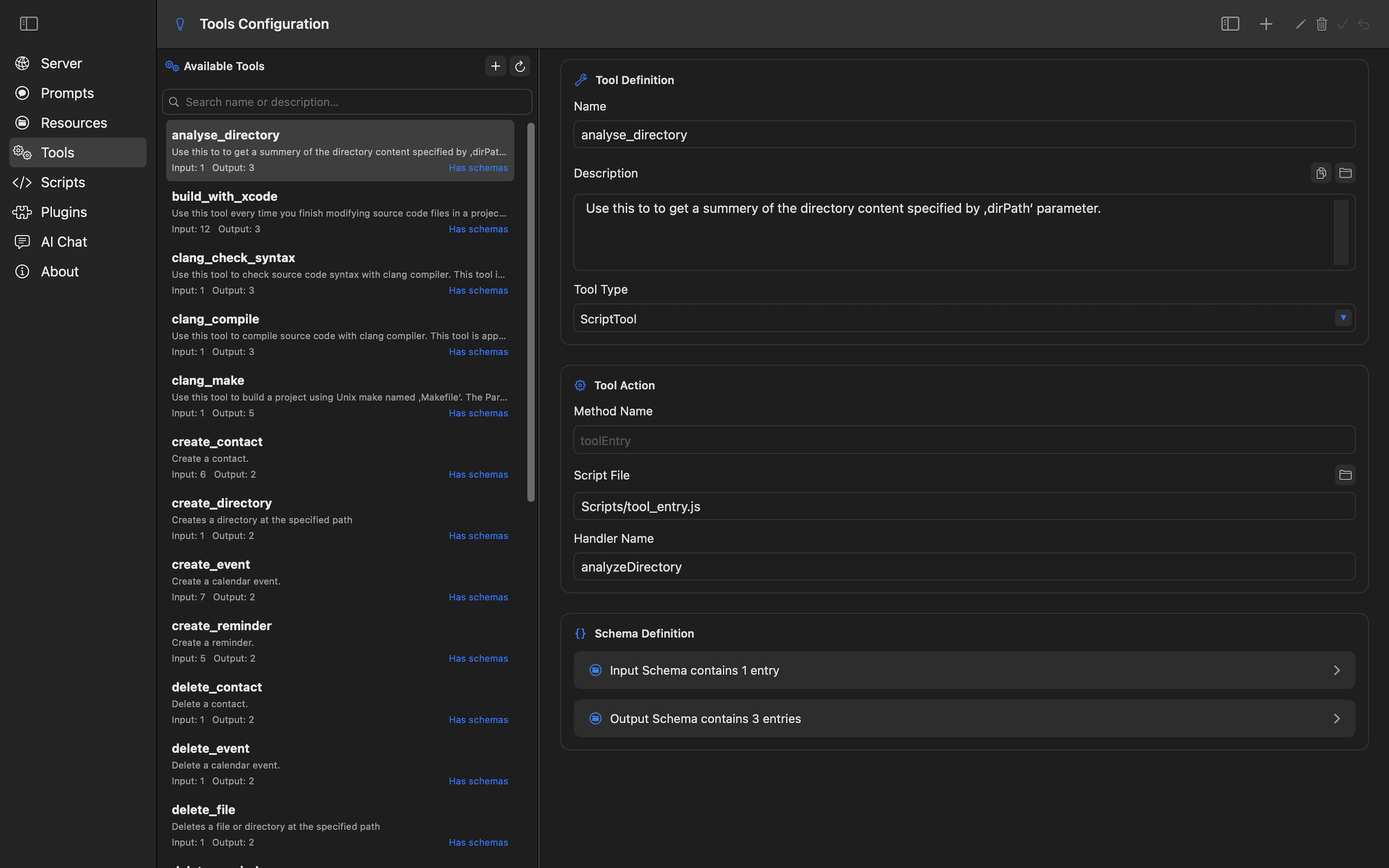
Define tool metadata, handlers, arguments, and schemas so clients and chat workflows can call them reliably.
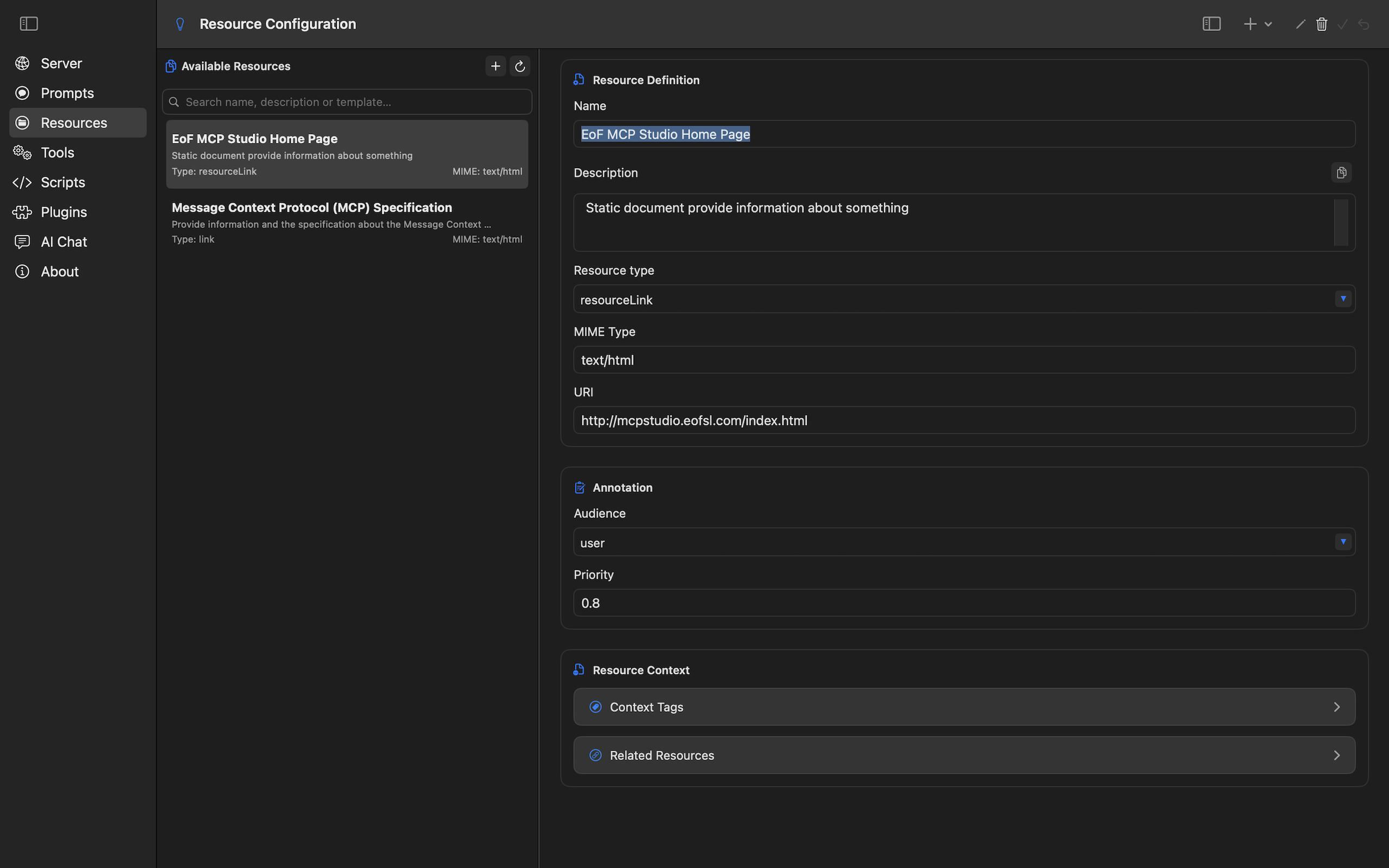
Save stable context and expose it through MCP or insert it into chat when the model needs shared facts.
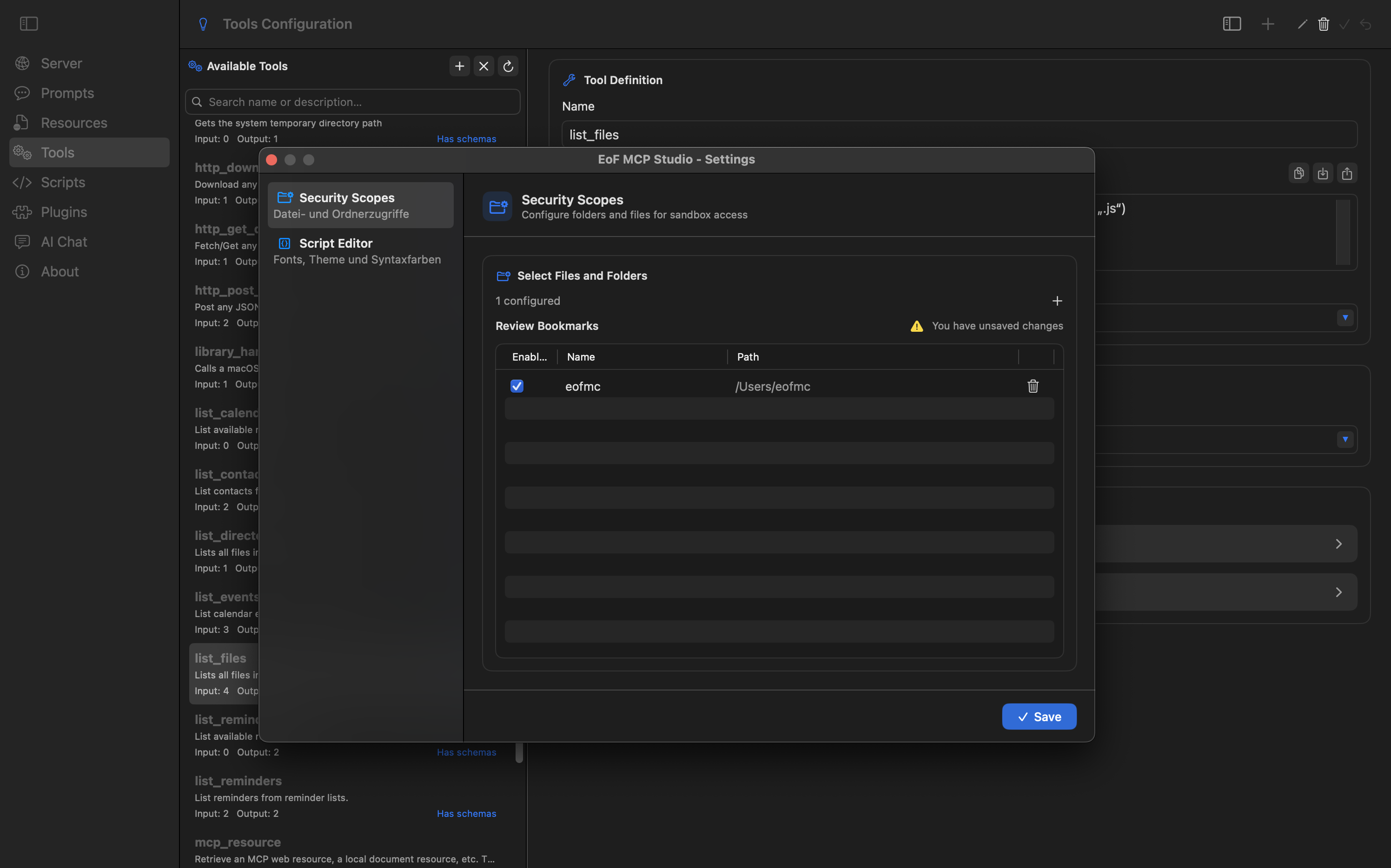
Review and maintain the sandbox file permissions that make local automation useful without broad access.
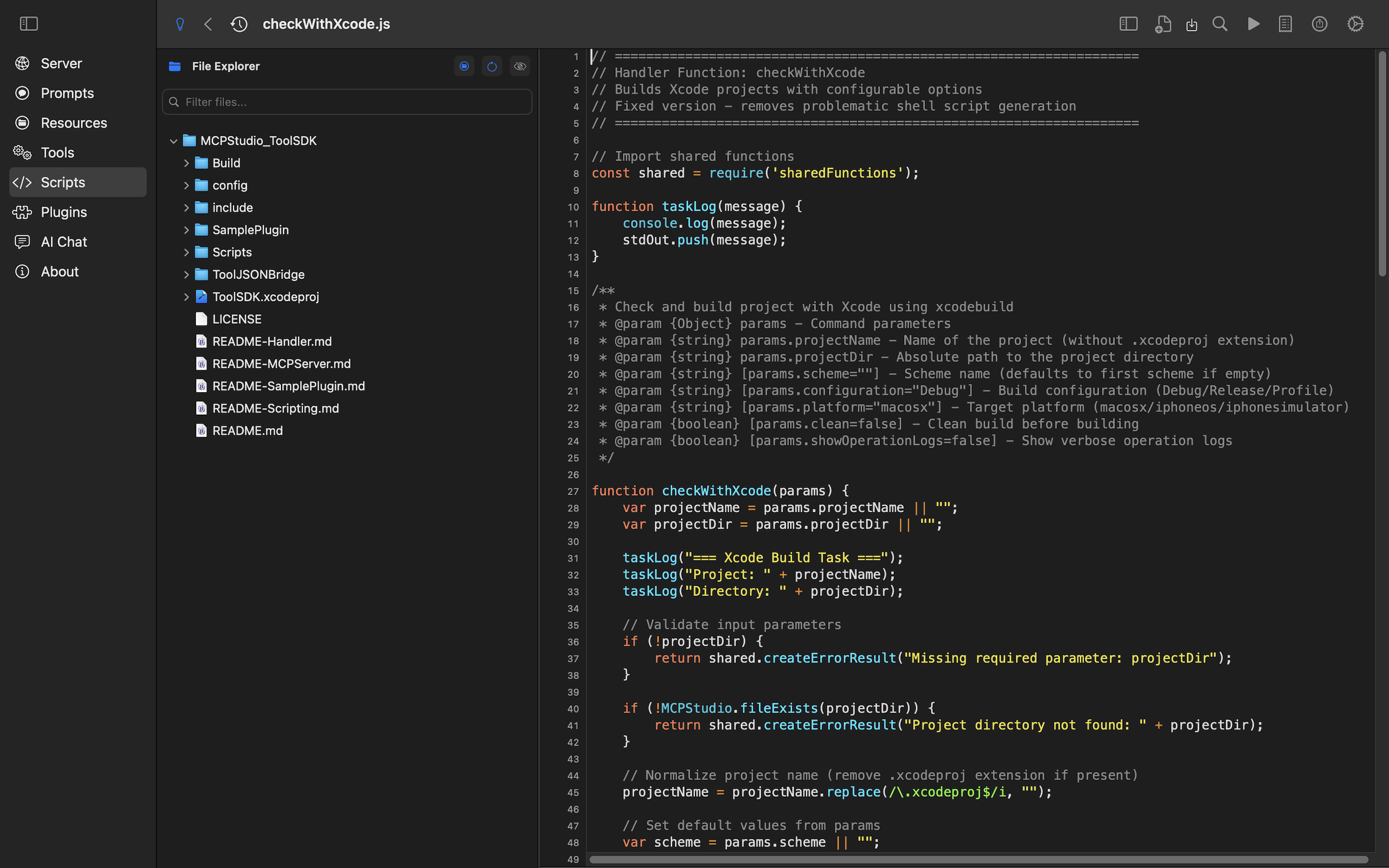
Write and test JavaScript handlers for custom tools with focused editing and execution controls.
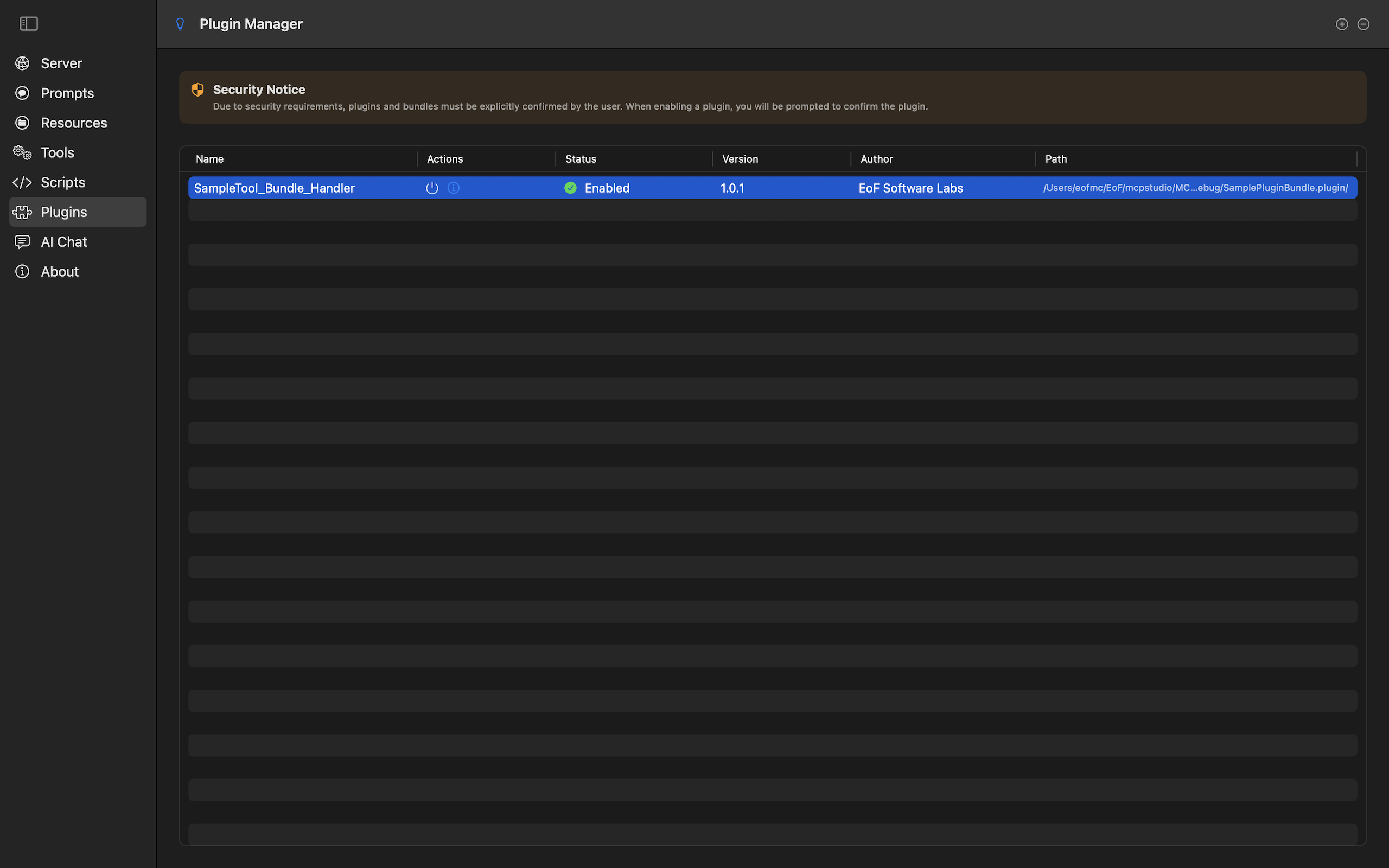
Register native plugins built as libraries or bundles and use the ToolSDK when a workflow needs native code.
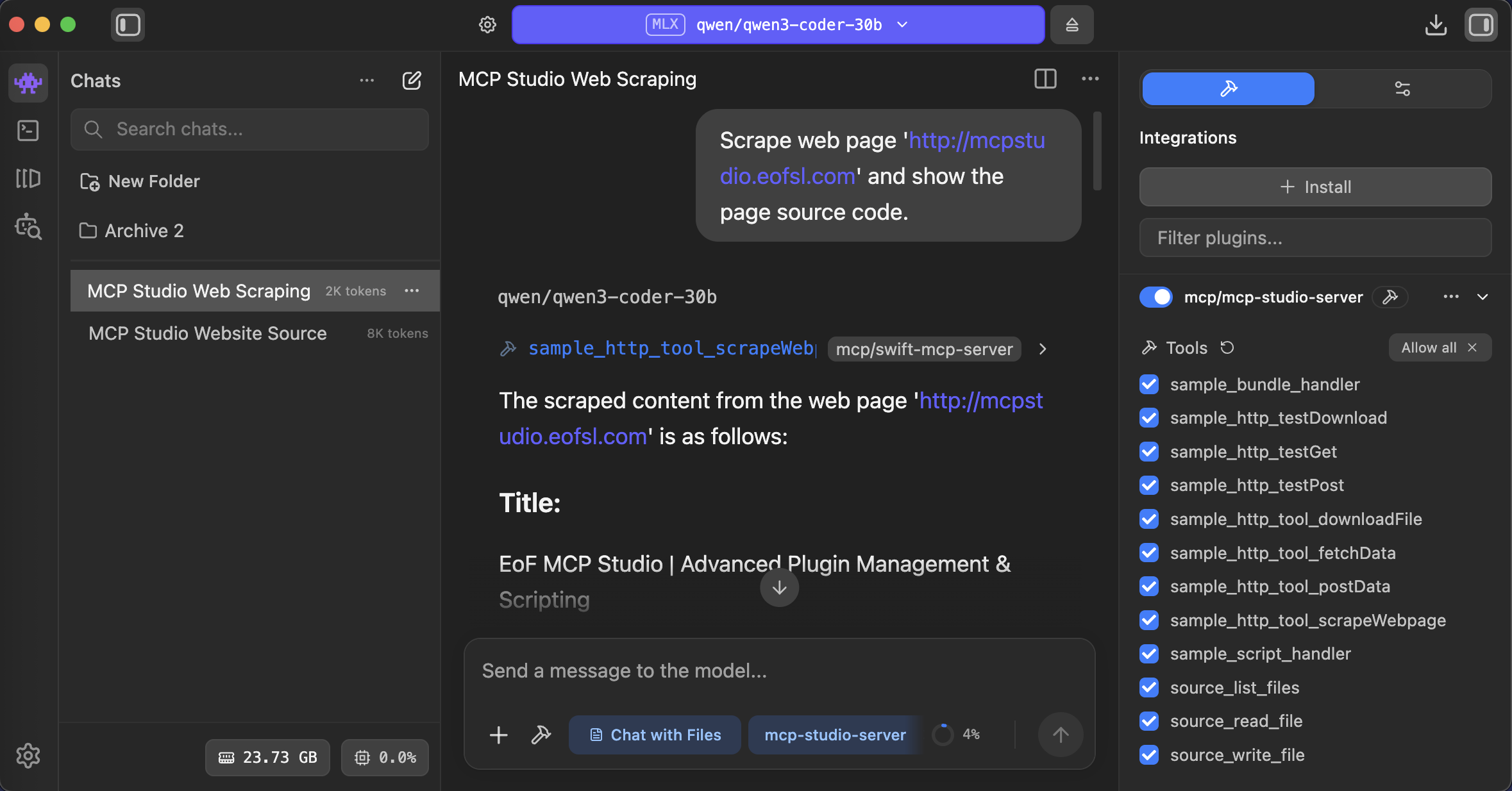
Use local models through LM Studio while still working with MCP tools, files, resources, and saved workflows.
Start with AI Chat, add a resource or tool, then save the pattern as a skill or Agent Workflow for next time.