Documentation
Build and Run MCP Workflows in EoF MCP Studio
Use this guide as the end-user map for AI Chat, Agent Workflows, server setup, tools, prompts, resources, skills, scripting, plugins, and secure local file access.
Updated: July 4, 2026
What you need
- macOS app: EoF MCP Studio installed from the download page.
- Model provider: LM Studio for local models or another configured provider.
- Goal: one workflow to test, such as chatting with a file, designing an Agent Workflow, exposing a local tool, or saving a reusable skill.
Quick start in 5 steps
- Open AI Chat and configure a provider in Connection Settings.
- Connect the provider, refresh the model list, and select a model.
- Open Server, confirm the MCP server settings, and start or restart it when needed.
- Add context with a file attachment, saved prompt, saved resource, selected skill, or saved Agent Workflow.
- Send a test message, inspect the response, then save the repeatable parts as a prompt, resource, tool, skill, or Agent Workflow.
Start with one small workflow. A simple chat with one attachment tells you whether the provider, file access, and model selection are working before you add tools or plugins.
Choose the right path
Most users can decide where to begin by matching the task to the area of the app.
Core guides
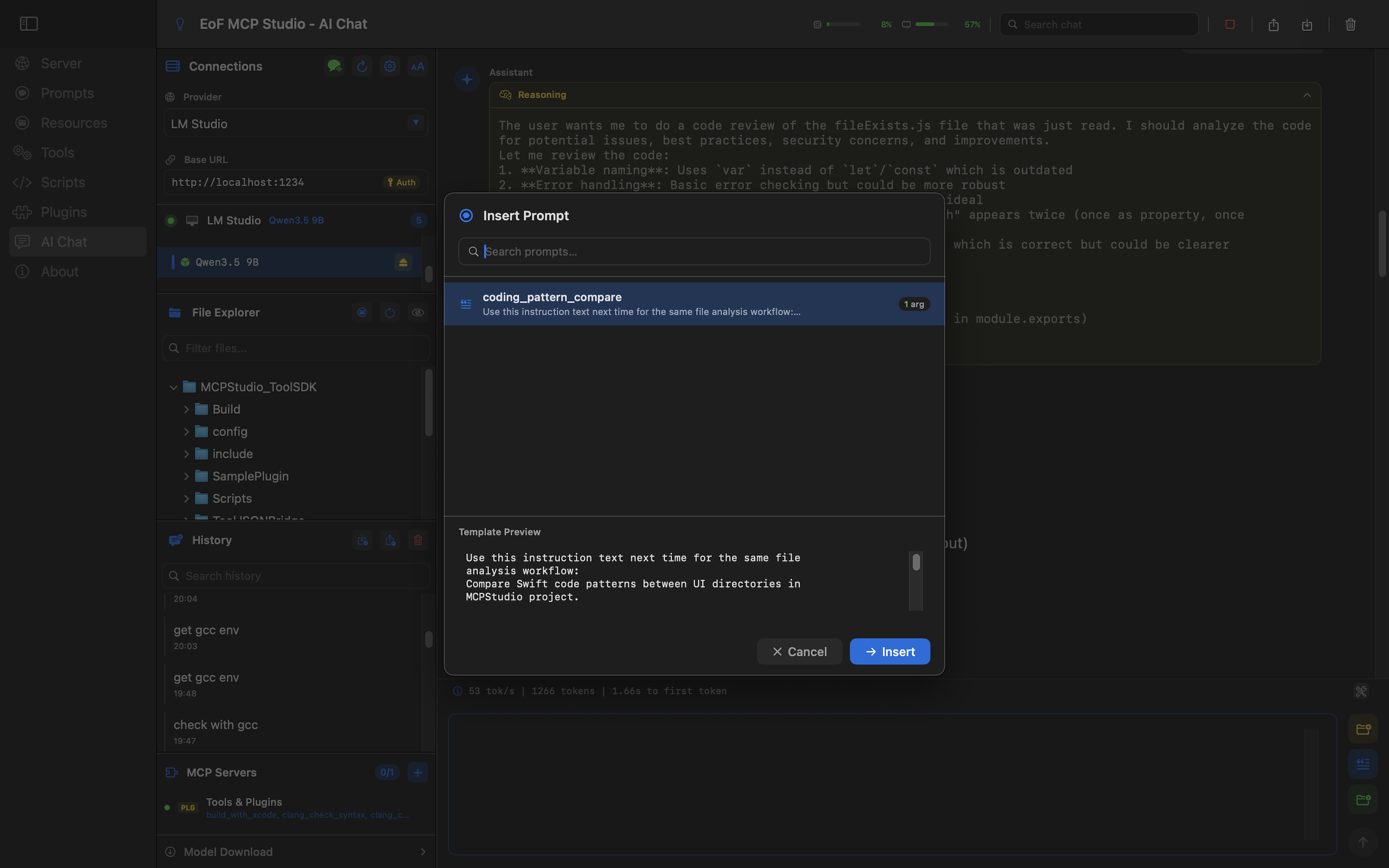
AI Chat
AI Chat is the daily workspace for connected models, selected skills, files, prompts, resources, and exported conversations.
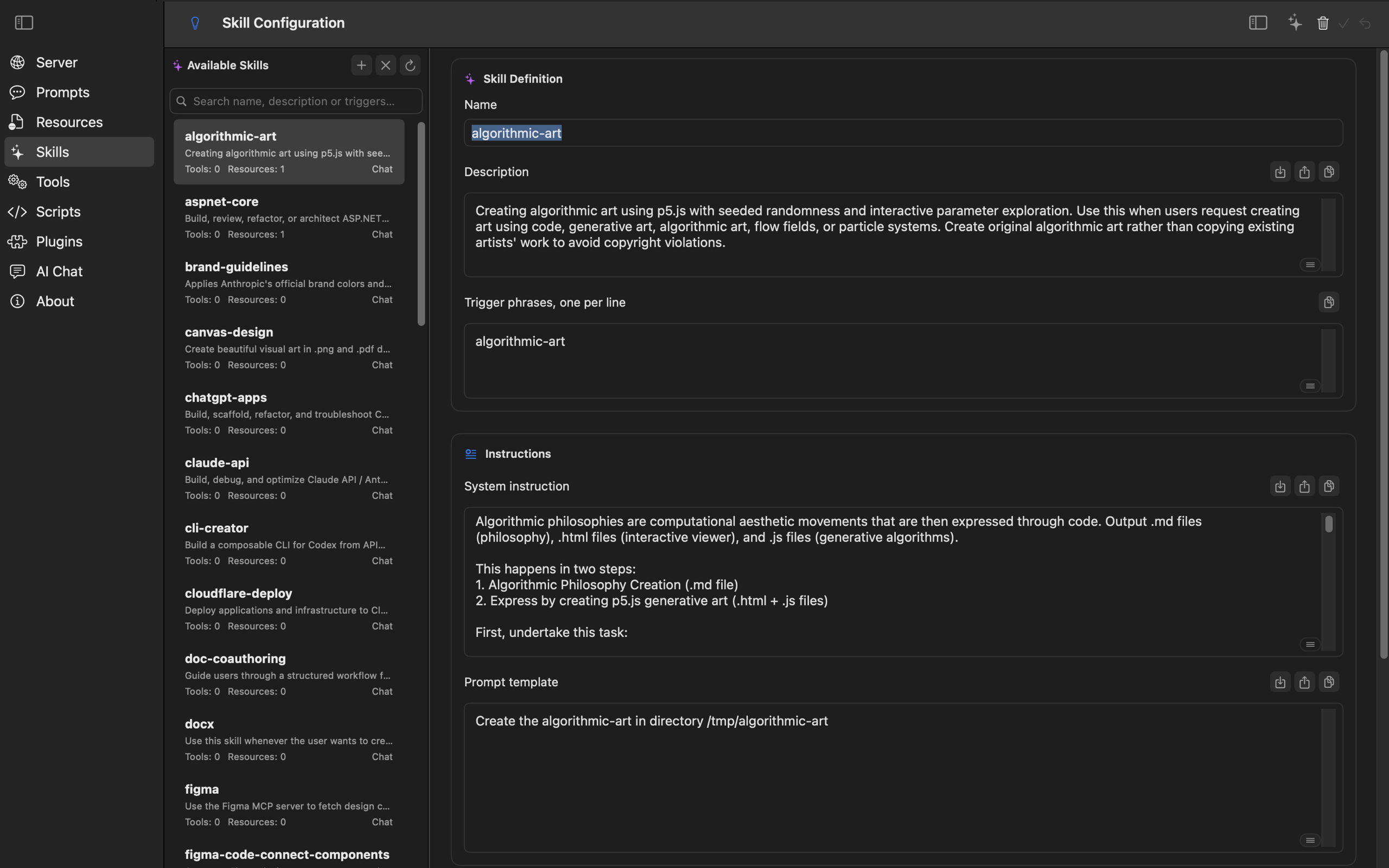
Skills
Skills bundle repeatable instructions, trigger phrases, prompt templates, selected tools, and resources for AI Chat.
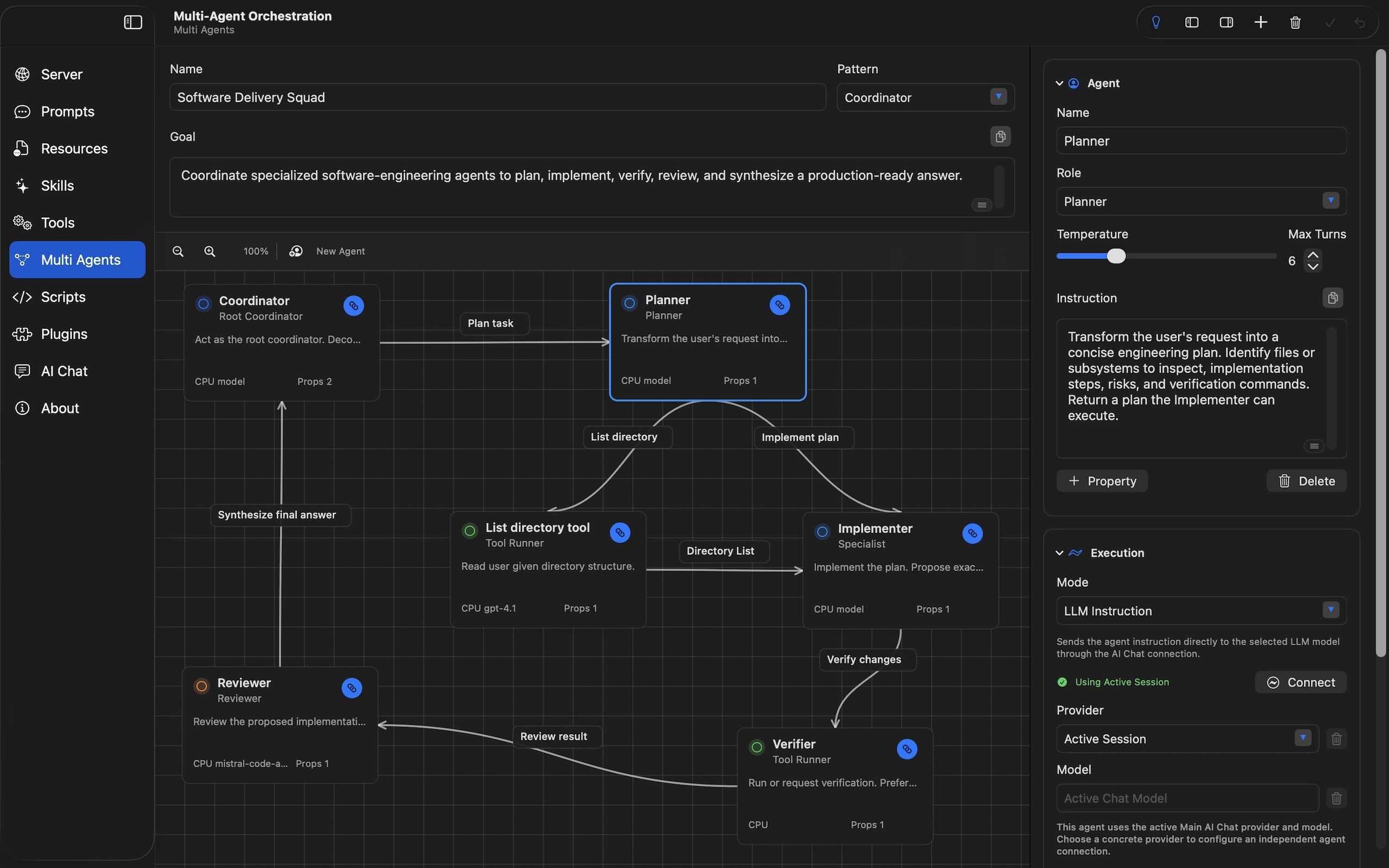
Agent Workflows
Agent Workflows connect coordinators, specialists, reviewers, synthesizers, and Tool Runner agents into saved flows that AI Chat or the workflow executor can run with a structured execution report.
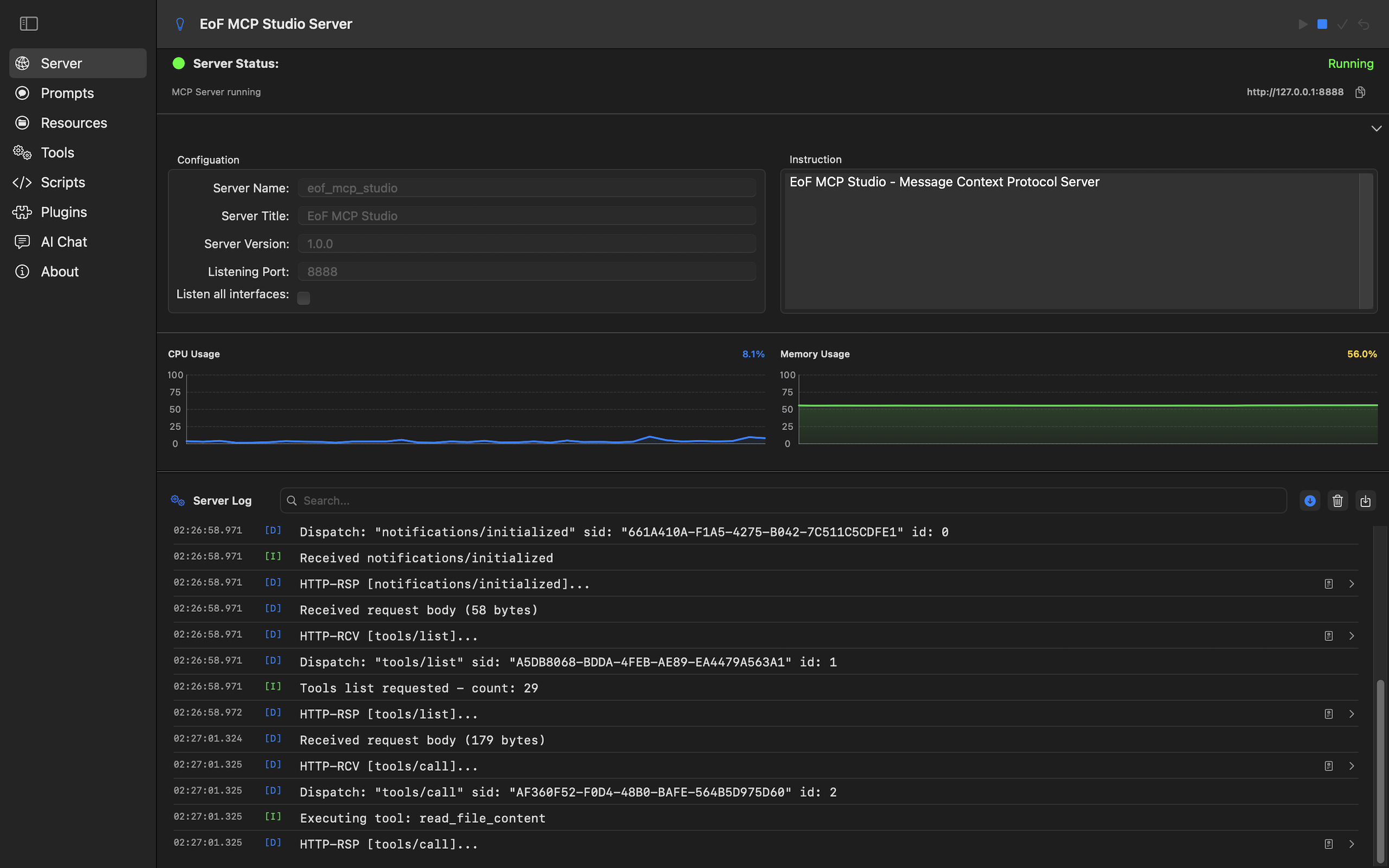
MCP Server
The server page controls host, port, auth token, HTTPS certificate checks, start/stop behavior, and live logs.
Build reusable MCP building blocks
Prompts
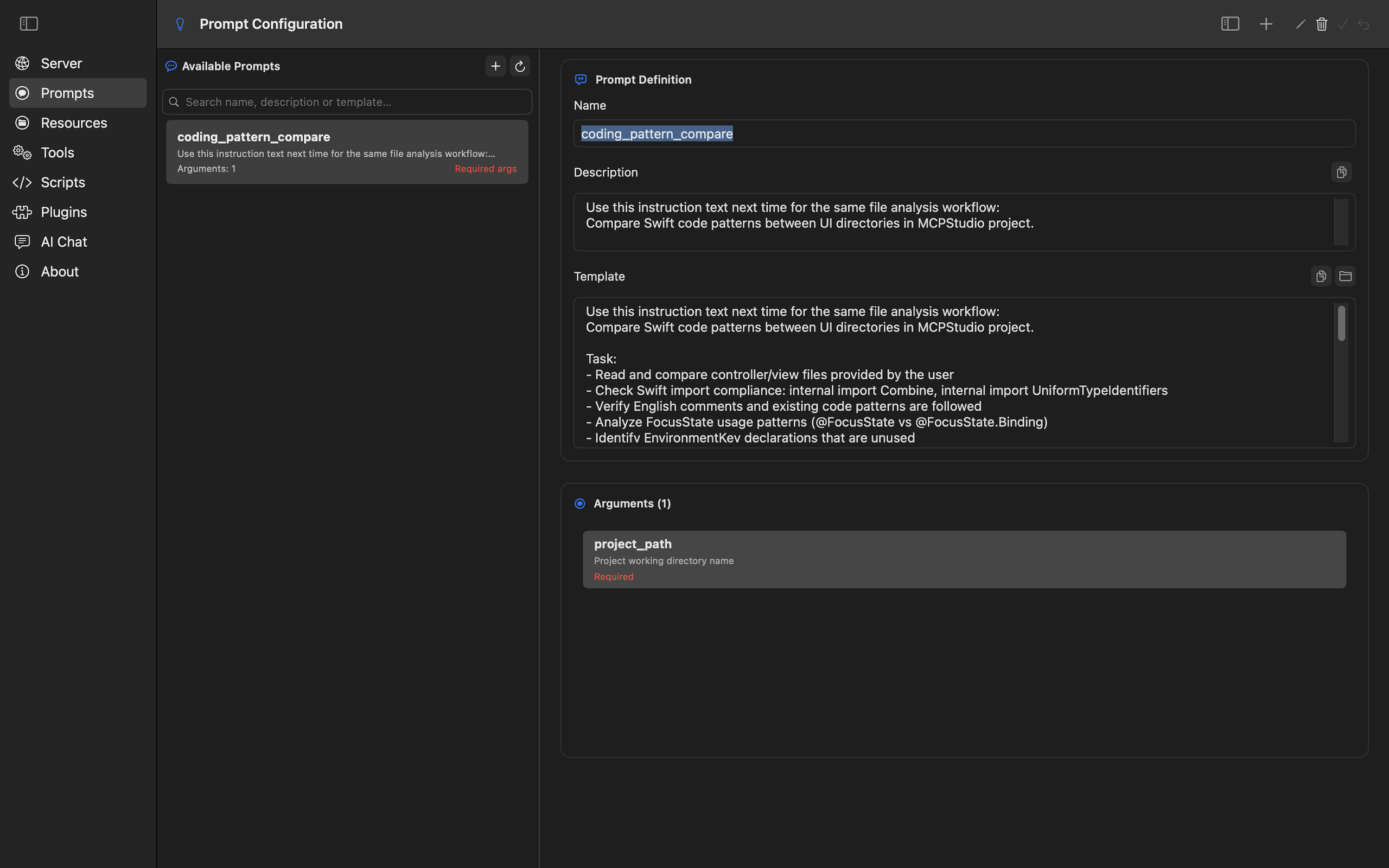
Prompts hold reusable instruction text so the same task starts consistently across chat and workflows.
Resources
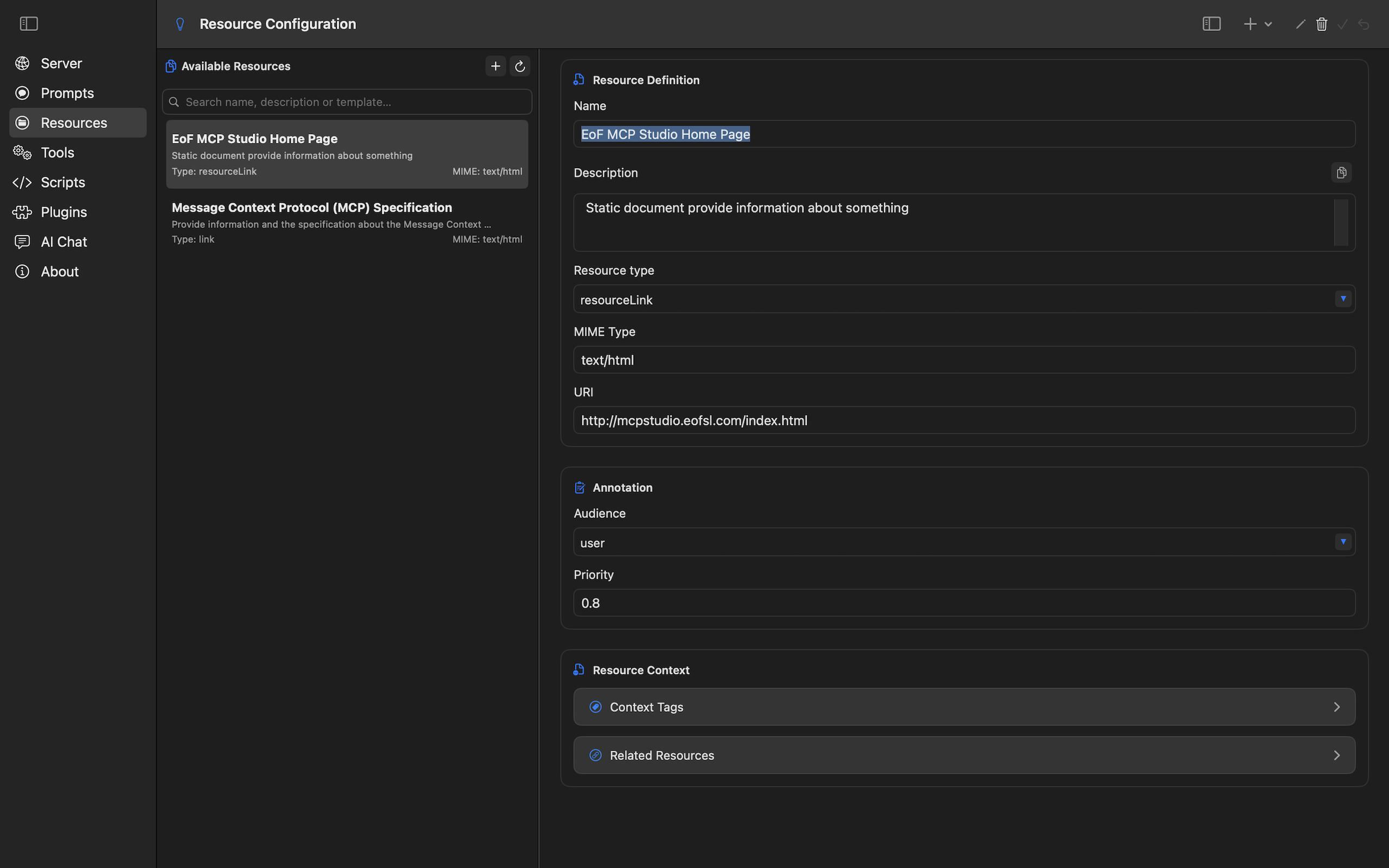
Resources provide reusable content and reference material for MCP clients, tools, and AI Chat.
Tools
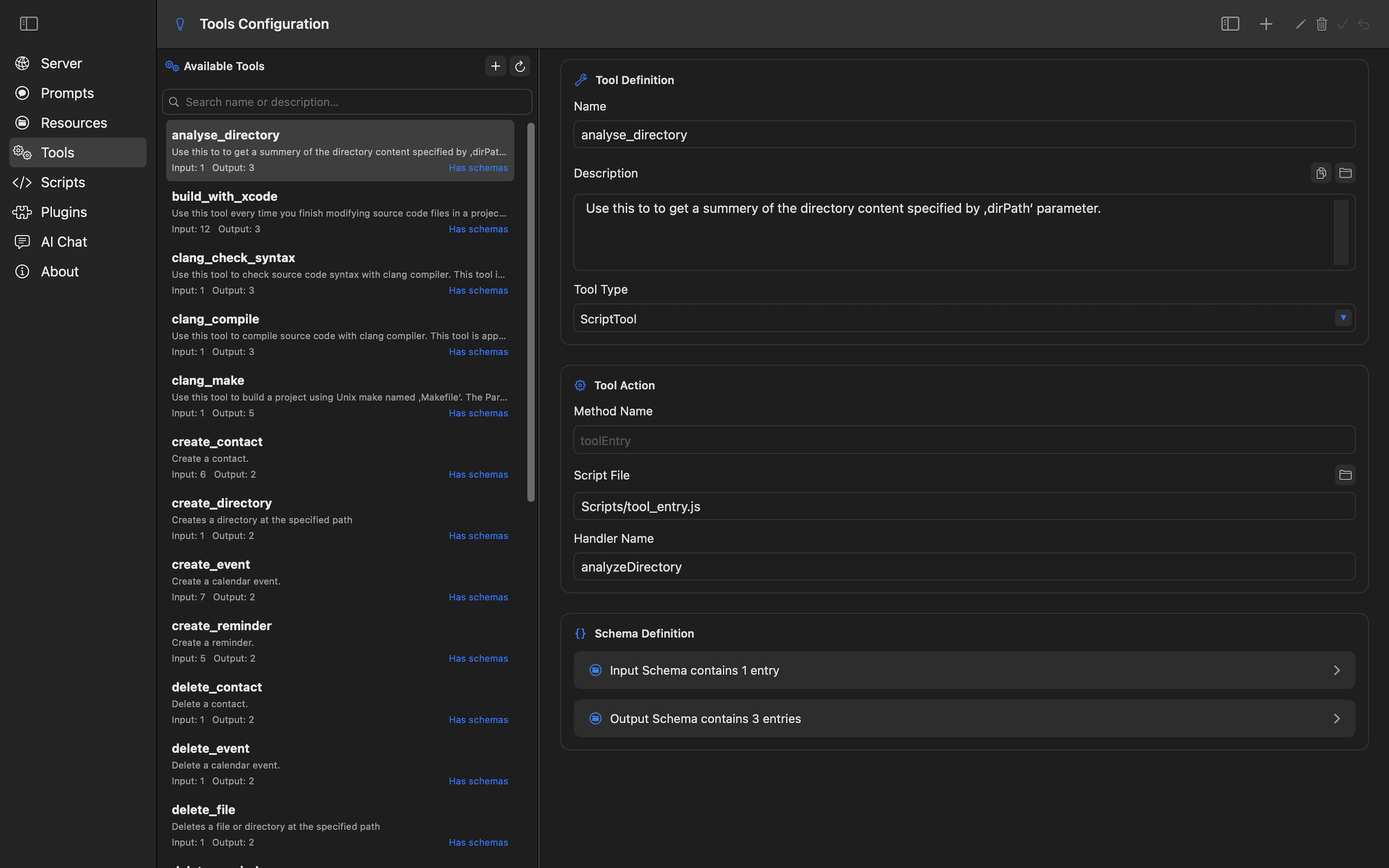
Tools expose actions with names, descriptions, handler settings, input schemas, and output schemas.
Add custom execution
Script Editor
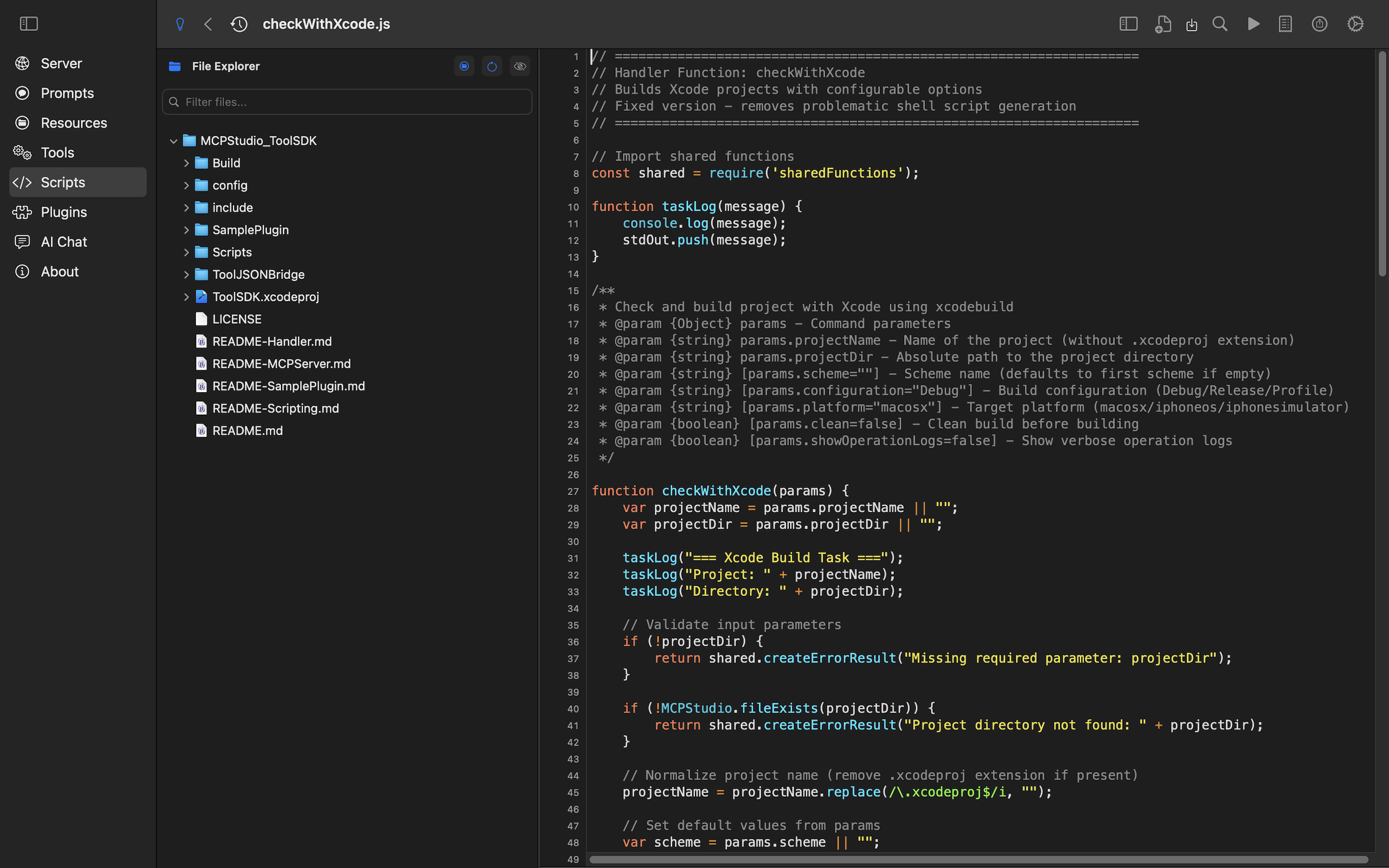
Use scripts when a tool needs local logic, data transformation, file processing, or calls to services you control.
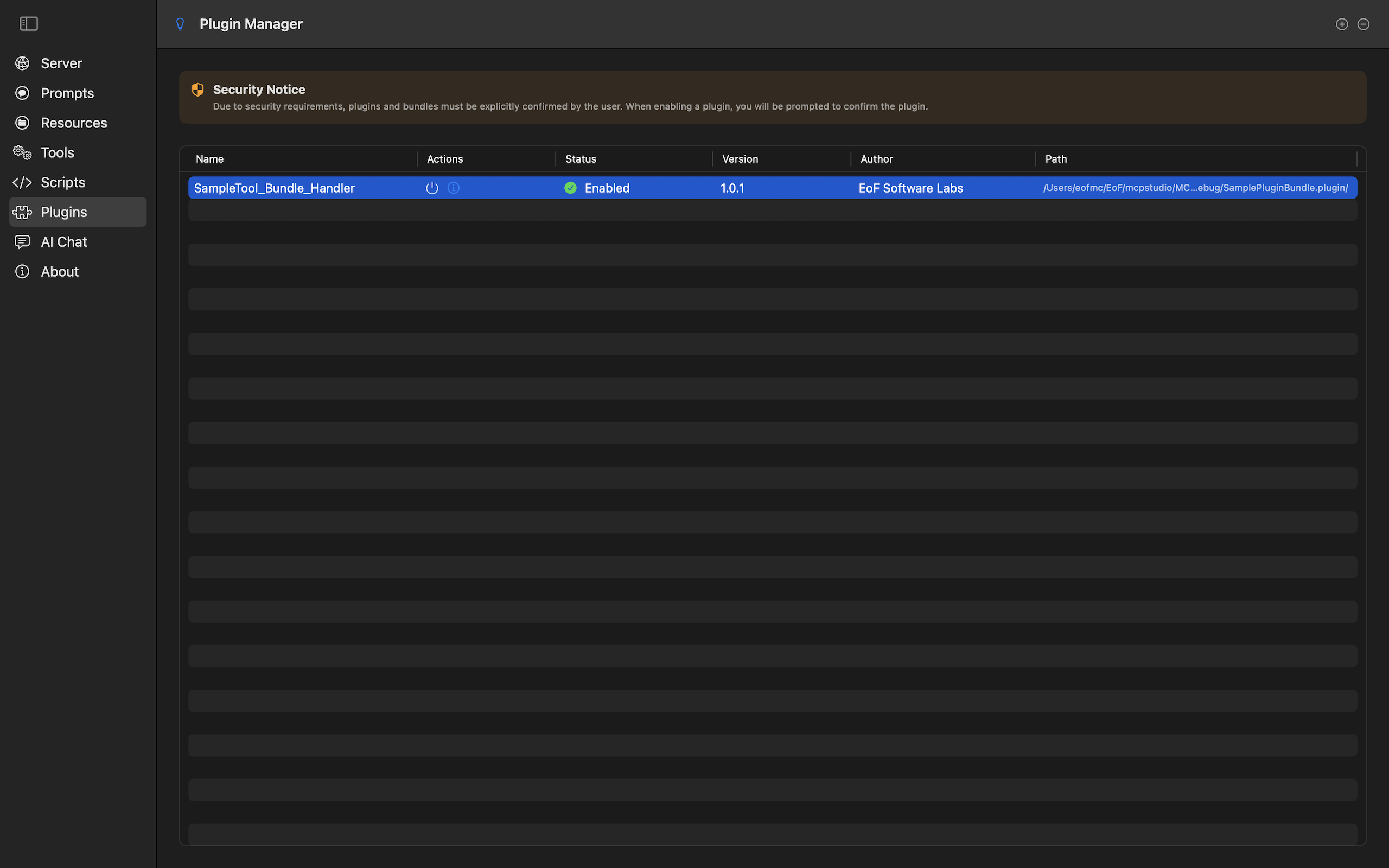
Plugins
Use native plugins when a workflow needs dynamic libraries, macOS bundles, or native code through the ToolSDK.
Grant file access safely
MCP Studio is sandboxed. File attachments, scripts, resources, and file-aware tools need explicit access to files or folders before they can read or write them.
- Open Settings and select Security Scopes.
- Add the smallest file or folder location that covers the workflow.
- Save the scope, then return to the chat, script, resource, or tool that needs it.
- Remove stale scopes when the workflow no longer needs them.
Removing a Security Scope can break saved tools, scripts, resources, or chat attachments that still depend on that path. Review workflow dependencies before deleting access.
Guide: Grant File Access Safely
Common errors and recovery steps
- No models appear: check the provider URL, start LM Studio if you use local models, then refresh the model list in AI Chat.
- Send button stays disabled: connect a provider, select a model, and make sure the message has text or a selected skill.
- Agent Workflow does not appear: open Multi Agents, save the flow, then reopen the workflow picker in AI Chat.
- Agent Workflow skips an agent: inspect the first failed upstream agent and check the workflow links for missing dependencies or cycles.
- MCP client cannot connect: verify the server host, port, token, HTTPS settings, and live server logs.
- Tool call fails validation: compare the input with the configured schema and check required fields.
- File access is denied: add the file or parent folder in Security Scopes, save, then retry the workflow.
- Skill does not appear in chat: make sure the skill is enabled and saved after changing tools or resources.